
Watch Movies in Your Terminal (MovieBox-Tui)
Scripts
How to install and use MovieBox TUI on Windows, Linux, and Android with Termux to stream and download movies and TV shows directly from your terminal.
POSTS
How to install and use MovieBox TUI on Windows, Linux, and Android with Termux to stream and download movies and TV shows directly from your terminal.
Streaming movies normally means opening a browser, dealing with multiple tabs, popups, redirects, heavy web players, and enough distractions to make simply watching something feel like unpaid labor.
But what if you could search for movies, TV shows, anime, and even live TV directly from your terminal?
Meet MovieBox TUI, a lightweight terminal application that lets you search, stream, and download media without needing to keep a browser open. It works on Windows, Linux, macOS, and even Android through Termux.
The project is open source and available on GitHub:
https://github.com/mesamirh/MovieBox-TUI
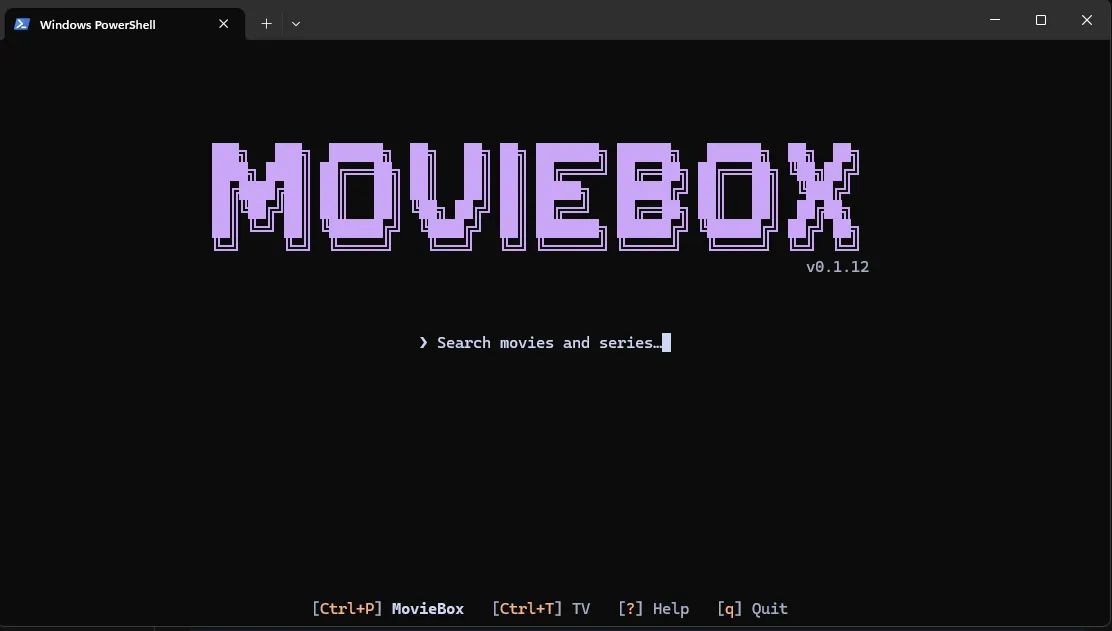
MovieBox TUI gives you most of what you would expect from a streaming interface, except everything happens inside your terminal.
You can:
Before installing MovieBox TUI, make sure you have:
Now we can get it running.
Windows has an automated PowerShell installer, which saves you from manually moving executables around and arguing with your PATH.
Before installing MovieBox TUI, I recommend installing mpv as your media player. The easiest way to do this on Windows is with Scoop.
Open PowerShell from the Start menu.
If you do not already have Scoop installed, run:
Set-ExecutionPolicy -ExecutionPolicy RemoteSigned -Scope CurrentUser
Invoke-RestMethod -Uri https://get.scoop.sh | Invoke-Expression
Once Scoop is installed, add the extras bucket:
scoop bucket add extrasThen install mpv:
scoop install extras/mpvYou can confirm that mpv installed correctly with:
mpv --versionMovieBox TUI should now be able to automatically use mpv when you select something to watch.
In PowerShell, run:
irm https://raw.githubusercontent.com/mesamirh/MovieBox-Tui/main/install.ps1 | iexThe installer automatically downloads the correct version for your system.
Once installation finishes, open a new terminal and run:
moviebox-tuiIf Windows SmartScreen warns you about an unknown publisher during installation, you may need to select More info → Run anyway.
That is it. MovieBox TUI should now open directly inside your terminal, with mpv ready to handle video playback.
Some MovieBox downloads require yt-dlp and FFmpeg.
If you have WinGet installed, open PowerShell and run:
winget install yt-dlp.yt-dlp Gyan.FFmpegOnce they are installed, restart MovieBox TUI:
moviebox-tuiYou can then press:
don an episode, movie, or season to download it.
Linux installation is even simpler.
Open your normal terminal.
curl -fsSL https://raw.githubusercontent.com/mesamirh/MovieBox-Tui/main/install.sh -o install.sh && bash install.shThe installer downloads the prebuilt Linux version and installs it to your user binary directory.
moviebox-tuiIf everything installed correctly, the interface should immediately open.
MovieBox TUI now officially supports Android through Termux, including a native Android ARM64 build.
This means there is no longer any need to modify the source code or compile a custom patched version.
Make sure you are using a current version of Termux.
You will also need a compatible Android video player. MovieBox TUI can hand the video over to Android players such as VLC, mpv, MX Player, or Just Player.
Open Termux and run:
apt update && apt upgradeRun:
pkg update && pkg install -y curl tar termux-tools termux-amThese packages give MovieBox TUI what it needs to install itself and open videos using Android applications.
Run:
curl -fsSL https://raw.githubusercontent.com/mesamirh/MovieBox-Tui/main/install.sh | bashRun:
termux-setup-storageAndroid will ask you to allow Termux access to your files.
Accept the permission.
This is especially important if you want to download movies or episodes to your Android storage.
Run:
moviebox-tuiThat is it.
MovieBox TUI should now run directly inside Termux.
If you want to download from MovieBox sources, install FFmpeg and yt-dlp:
pkg install ffmpegThen:
pkg install yt-dlpOr install both at once:
pkg install -y ffmpeg yt-dlpMake sure you have already given Termux storage access:
termux-setup-storageThen reopen MovieBox TUI:
moviebox-tuiMove to the movie, episode, or season you want and press:
dYou can then select the available quality and start the download.
Once MovieBox TUI has been installed on any platform, start it with:
moviebox-tuiInside the app, search for what you want to watch and select a stream.
If you cannot find something, press:
Ctrl + PThis switches between the available sources. Try another source and search again.
You can also press:
Ctrl + Tto open the Live TV feature. This lets you watch live TV using an IPTV link, which you can easily find here.
For a full list of controls, press:
?inside MovieBox TUI.
MovieBox TUI can download movies directly instead of only streaming them.
For TV shows, you can download either:
Interrupted downloads are stored as partial files, allowing MovieBox TUI to continue downloading from where it stopped rather than throwing away your progress.
Completed episodes are also detected when downloading a season, so MovieBox TUI can skip files that have already finished downloading.
During my testing in Termux, when downloading an entire season, I first had to start the download for the first episode and choose the source.
Once that first source was selected, MovieBox TUI continued with the rest of the season.
So if you select an entire season and it appears to be waiting for something, check the first episode and select its source.
If MovieBox TUI opens but cannot play anything, first make sure you actually have a supported player installed.
The project supports players such as:
If the application reports that no player is available, install one or configure MovieBox TUI to use the correct player.
You can also start MovieBox TUI with debug logging:
MOVIEBOX_LOG=debug moviebox-tuiThis produces more detailed information that can help when diagnosing playback, download, or connection problems.
MovieBox TUI is a surprisingly capable way to search, watch, and download movies and TV shows without needing a traditional streaming website open in your browser.
On Windows and Linux, installation takes only a few commands.
On Android, Termux turns your phone into a proper terminal environment, allowing MovieBox TUI to run natively there as well. And if the normal Termux version gives you Android context or terminal-width problems, the patched installer provides another way to get it running.
Once everything is installed, all you need is:
moviebox-tuiAnd suddenly your terminal is doing considerably more than whoever invented the command line probably expected.
MovieBox TUI itself does not host or store media. It acts as a client for available streams, so make sure your usage and the content you access comply with the laws that apply where you live.

Android users have had Mihon for years, while iOS was stuck with popups and expired TestFlight betas. This guide walks you through setting up Aidoku on iPhone or iPad without needing a PC after day one.
Author
Japhet Adofo-Adjei
Duration
7 min

Learn how to use Chrome Remote Desktop to securely access your computer, provide remote support, and connect to headless Linux devices from anywhere.
Author
Anna Ablordeppey
Duration
4 min

Learn how to seamlessly mirror your Android device to your PC using Scrcpy over wireless debugging, plus an introduction to a custom tool to make the connection process effortless.
Author
Llewellyn Paintsil
Duration
4 min

Comments
0 comments · Page 1 / 1