
How to Remotely Control a PC for Free with Chrome Remote Desktop
Tutorial
Learn how to use Chrome Remote Desktop to securely access your computer, provide remote support, and connect to headless Linux devices from anywhere.
POSTS
Learn how to use Chrome Remote Desktop to securely access your computer, provide remote support, and connect to headless Linux devices from anywhere.
Between leaving crucial files locked on your home PC and playing blind IT support for your friends over a call, dealing with screens you can't physically reach is a guaranteed headache.
The usual solutions involve paid software, messy network configurations, or third-party apps that bombard you with ads. Trying to get a clean, fast connection to another computer shouldn't be a frustrating experience.
There is a better way. Meet Chrome Remote Desktop, a lightweight, completely free tool by Google that lets you securely access your own computers or provide remote support right from your web browser.
By leveraging this built-in Google tool, you get a powerful setup:
Completely Free: No premium tiers, no connection time limits, and no ads.
Cross-Platform: Works seamlessly across Windows, Mac, Linux, and even your smartphone.
Browser-Based: You don't need to install heavy software on the device you are connecting from.
First, let's get your "host" machine ready. This is the computer you want to be able to connect to when you are away.
Step 1: Install the Host Software
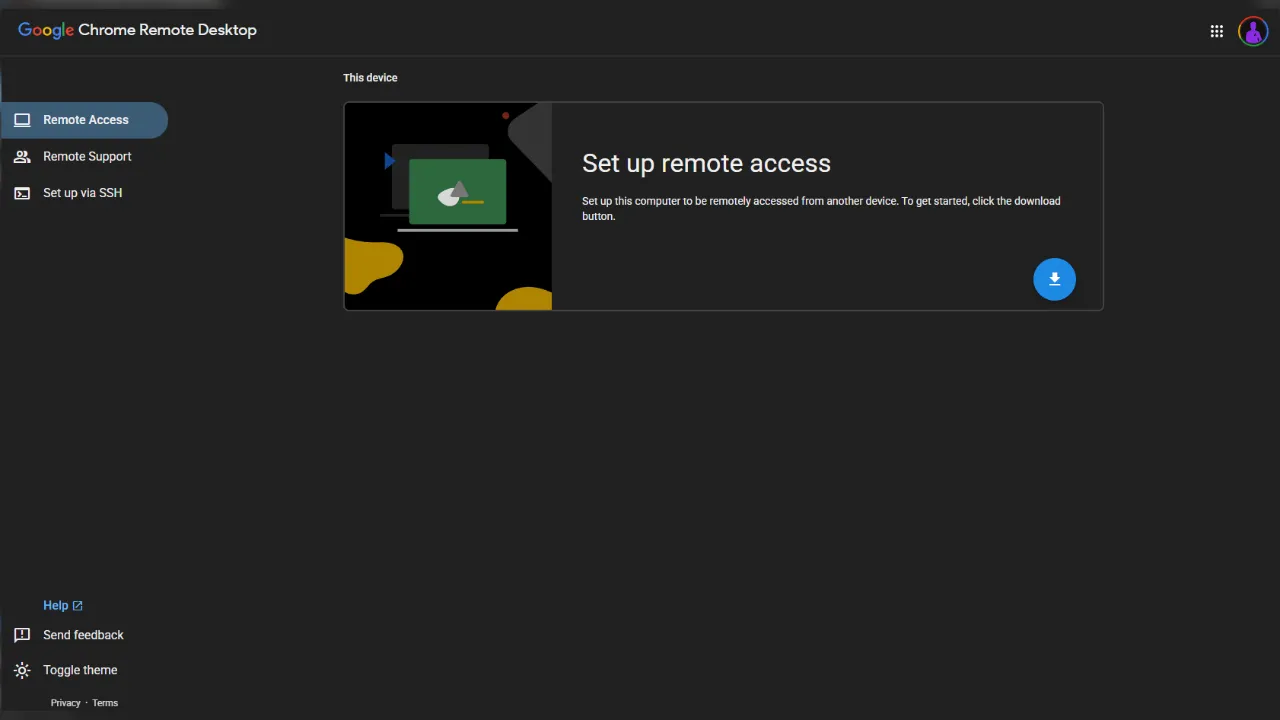
On the device you want to connect remotely to, open your browser and head to: https://remotedesktop.google.com/access/
You should see a Set up remote access section. Click on the download icon.
This will download the host installer specific to your operating system.
Run the downloaded file and install the Chrome Remote Desktop host.
Step 2: Configure Your PC
After installation, go back to the website. The setup button will now say Turn on. Click it.
Type in a recognizable name for your PC (e.g., "Home Desktop").
Enter a secure, custom PIN that you will use to log in, and click Start.
Accept any system permission prompts to allow the service to run in the background. Your host is now ready!
Step 3: Connect from Anywhere Now, let's link to it from another device.
On your laptop, phone, or any other device, go back to the same https://remotedesktop.google.com/access/ site.
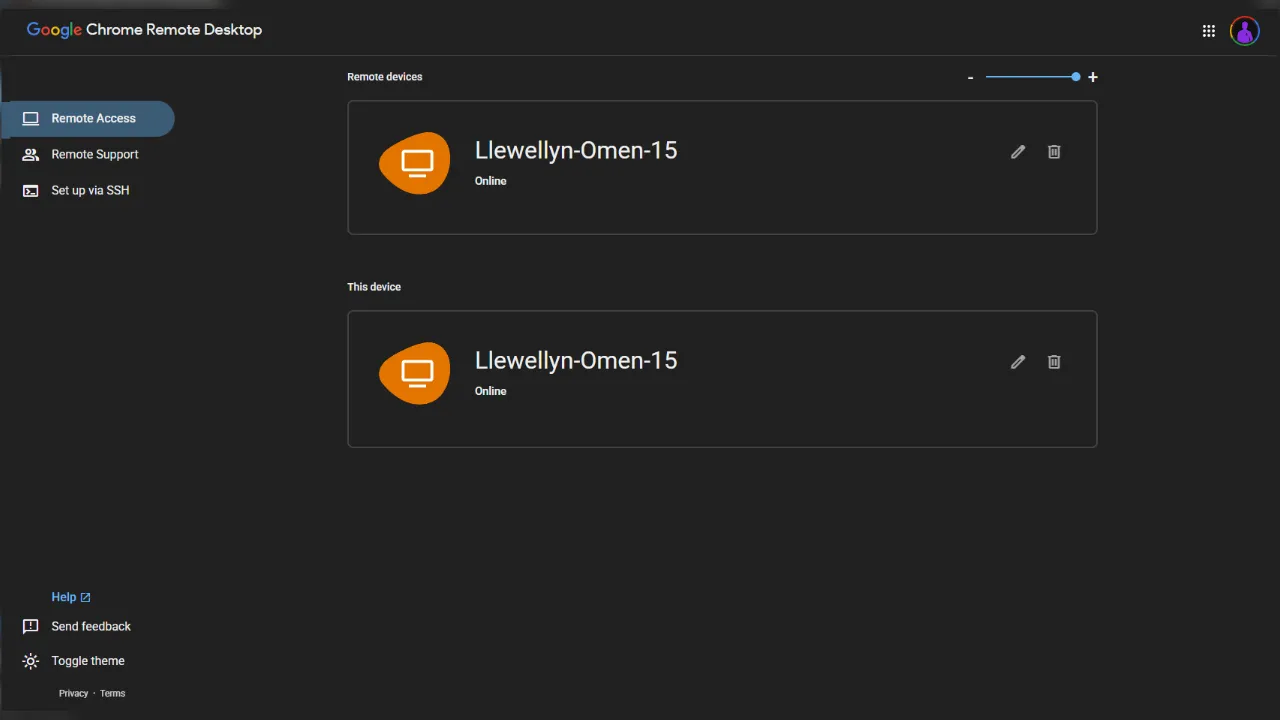
You should see the name of your host device listed under "Remote Access."
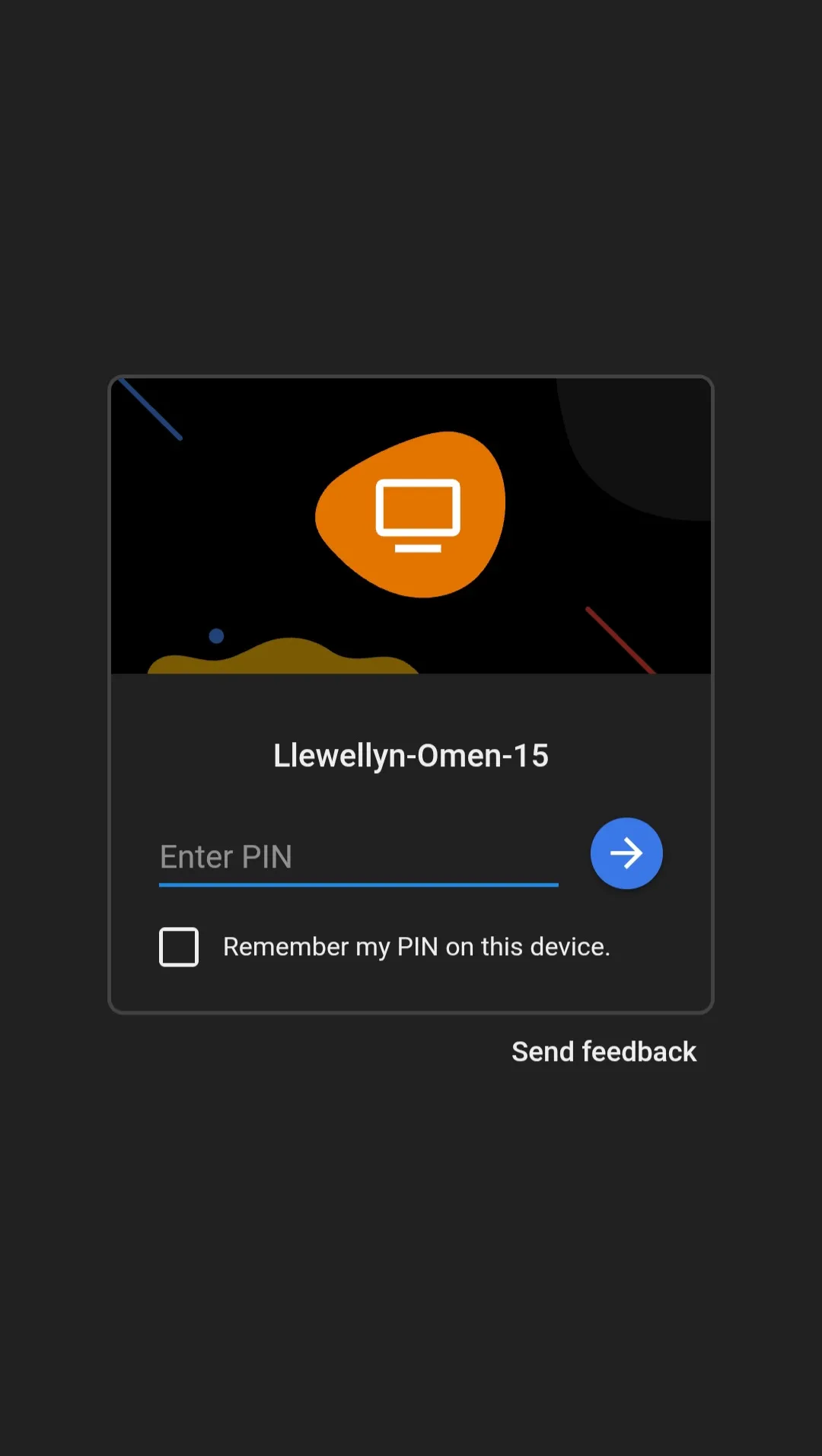
Click on it. It will ask for your password.
Type in the PIN you created in Step 2, and you are in!
If you don't need permanent access but just want to help a friend fix a computer issue, use the Remote Support feature.
Step 1: Generate an Access Code
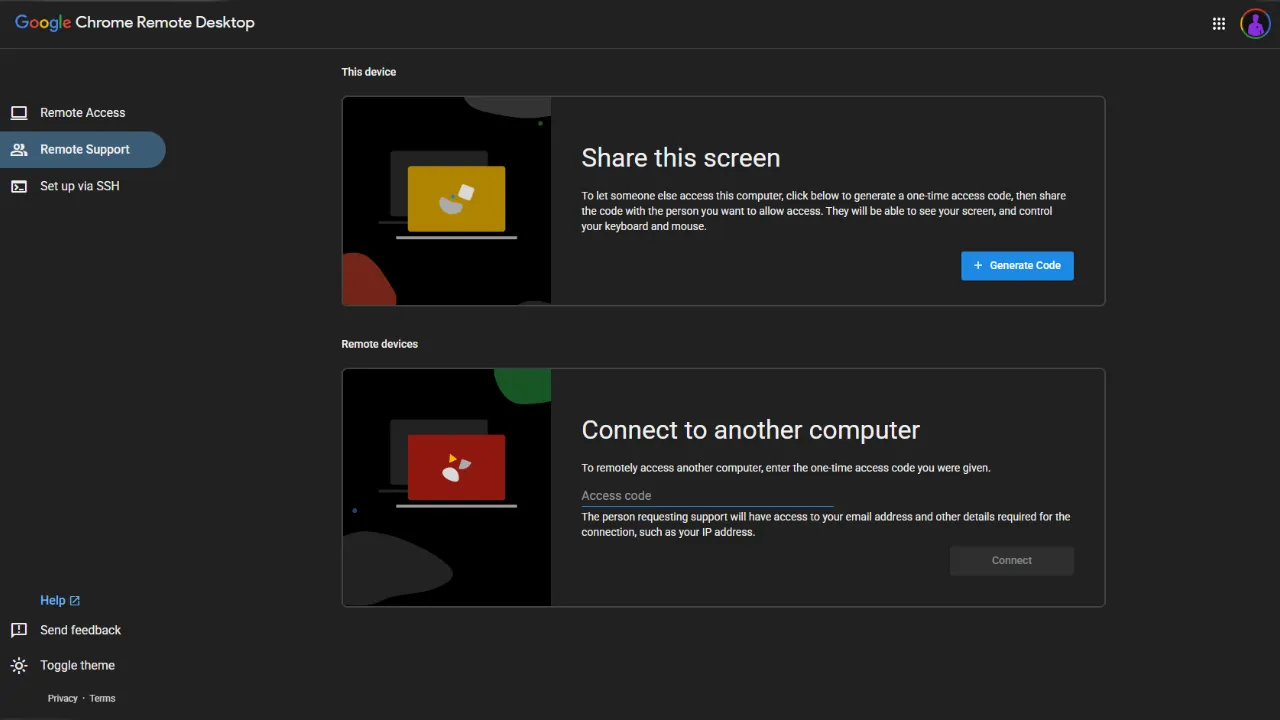
Have the person who needs help go to the site and click on the Remote Support tab.
Tell them to click the Generate Code button.
This will generate a unique, one-time 12-digit code they can share with you. (Note: This code expires in 5 minutes for security reasons).
Step 2: Connect to Their Screen
On your PC, navigate to the same Remote Support page.
In the "Connect to another computer" section, paste the code they just gave you.
Click Connect.
A prompt will pop up on their screen asking if they want to share. Once they click agree, their screen will instantly pop up on your computer!
This method is entirely terminal-based and is mainly for Linux computers you cannot physically access or plug a monitor into, such as:
A cloud server or VPS
A Raspberry Pi project
A headless PC with no monitor attached
A remote Linux machine running in another location
Chrome Remote Desktop is one of the simplest ways to access another computer without paying for expensive software or dealing with complicated network settings.
Whether you need to retrieve files from your home PC, work from another location, manage a headless Linux machine, or help someone fix a computer problem, it gives you a fast and practical solution.
Just remember to use a strong PIN, keep your Google account secure, and only share temporary access codes with people you trust.
Once everything is set up, your computer is no longer limited to the desk it sits on. You can securely access it from almost anywhere with an internet connection.

Android users have had Mihon for years, while iOS was stuck with popups and expired TestFlight betas. This guide walks you through setting up Aidoku on iPhone or iPad without needing a PC after day one.
Author
Japhet Adofo-Adjei
Duration
7 min

How to install and use MovieBox TUI on Windows, Linux, and Android with Termux to stream and download movies and TV shows directly from your terminal.
Author
Llewellyn Paintsil
Duration
8 min

Learn how to seamlessly mirror your Android device to your PC using Scrcpy over wireless debugging, plus an introduction to a custom tool to make the connection process effortless.
Author
Llewellyn Paintsil
Duration
4 min

Comments
0 comments · Page 1 / 1