
Compress Videos using 8mb
Tutorial
Getting errors when trying to send videos? Don't use sketchy online converters. This guide explains how to self-host 8mb.local to compress high-quality clips privately using your own GPU.
POSTS
Getting errors when trying to send videos? Don't use sketchy online converters. This guide explains how to self-host 8mb.local to compress high-quality clips privately using your own GPU.
We have all been there. You just clipped an insane highlight in your favourite game, or maybe you recorded a quick bug report for your developer team. You drag the file into Discord, Slack, or WhatsApp, hit Enter, and... "Your files are too Big."
The dreaded upload limit is one of the most annoying hurdles on the internet. To get around it, most people turn to sketchy online converters. But uploading your personal videos to a random server is slow, degrades quality, and is a privacy nightmare.
There is a better way. Meet 8mb.local, a self-hosted tool that uses your own computer's power to shrink videos to the perfect size—without them ever leaving your network.
8mb.local is a free, open-source web application that runs on your computer. It is designed with a "fire-and-forget" philosophy: you give it a video and a target size (like 8MB, 25MB, or 50MB), and it handles the rest.
Because it runs locally, it is incredibly fast. It can utilize your graphics card (NVIDIA, Intel, or AMD) to compress your videos in seconds. Plus, since the file never uploads to the cloud, your data remains 100% private.
Unlike a standard Windows app, 8mb.local doesn't come as a simple .exe file yet. It runs inside a container using Docker. This might sound technical, but it’s actually quite straightforward.
First, you need the engine that runs the app.
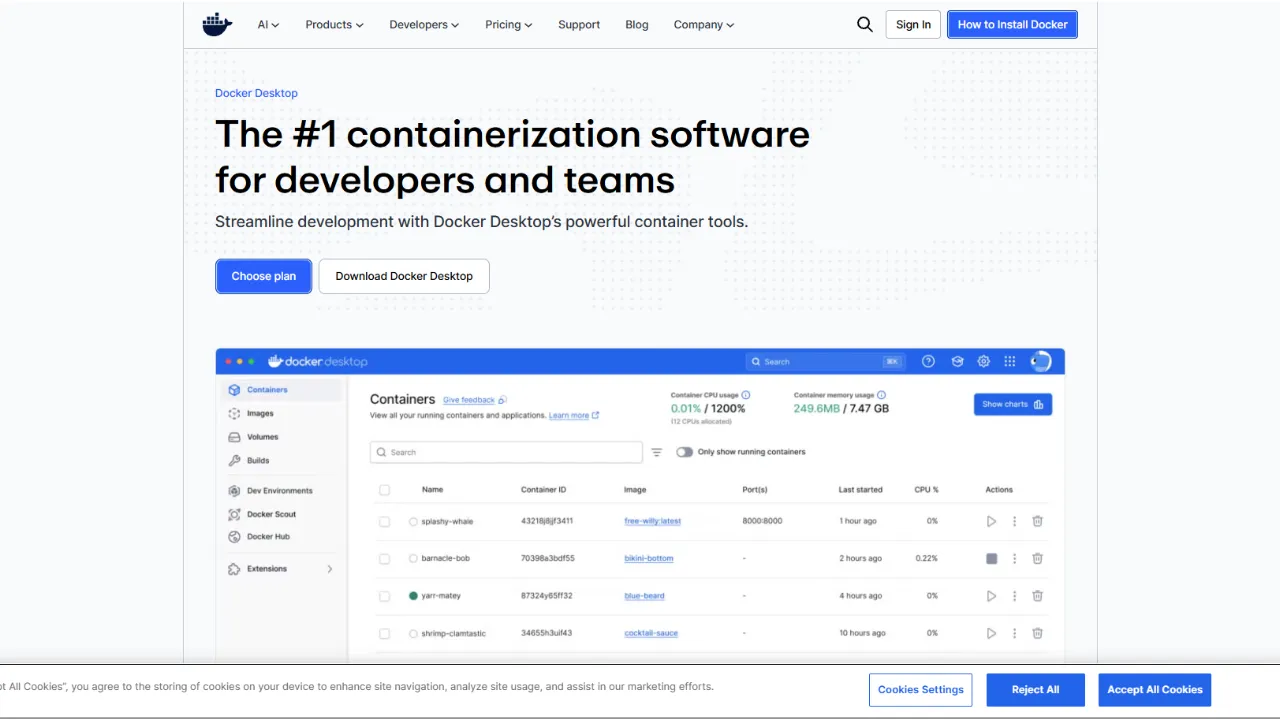
You don't need to download a zip file. You just need to tell Docker to grab the app for you.
Open your Command Prompt (Windows) or Terminal (Mac/Linux) and paste one of the following commands:
For most users (CPU only - works everywhere):
docker run -d --name 8mblocal -p 8001:8001 -v./uploads:/app/uploads -v./outputs:/app/outputs jms1717/8mblocal:latest
For Gamers (NVIDIA GPU Acceleration): If you have an NVIDIA graphics card, use this command to unlock blazing fast speeds:
docker run -d --name 8mblocal --gpus all -e NVIDIA_DRIVER_CAPABILITIES=compute,video,utility -p 8001:8001 -v./uploads:/app/uploads -v./outputs:/app/outputs jms1717/8mblocal:latest
For AMD/Intel GPUs If you have a AMD or Intel Graphics card, use this command:
docker run -d --name 8mblocal --device=/dev/dri:/dev/dri -p 8001:8001 -v ./uploads:/app/uploads -v ./outputs:/app/outputs jms1717/8mblocal:latestOnce the command is running, the app is live on your computer.
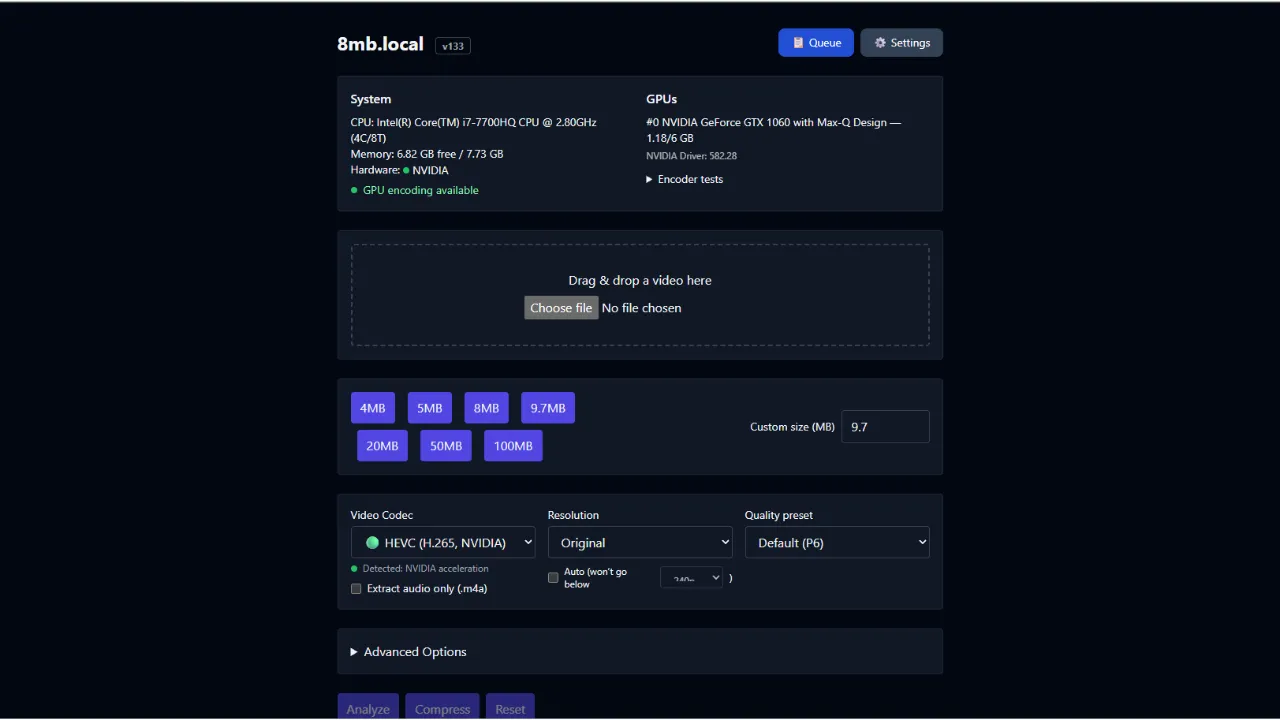
Open your browser and go to http://localhost:8001. You will see a clean, dark interface.
Drag and drop your video file anywhere on the screen. The app will instantly analyze it.
Select a Target Size. Click on 4MB, 5MB, 8MB, 100MB, etc, or enter a Custom size.
Click "Compress".
Disclaimer: This tool is open-source software. Always ensure you are downloading from the official repository.

Android users have had Mihon for years, while iOS was stuck with popups and expired TestFlight betas. This guide walks you through setting up Aidoku on iPhone or iPad without needing a PC after day one.
Author
Japhet Adofo-Adjei
Duration
7 min

How to install and use MovieBox TUI on Windows, Linux, and Android with Termux to stream and download movies and TV shows directly from your terminal.
Author
Llewellyn Paintsil
Duration
8 min

Learn how to use Chrome Remote Desktop to securely access your computer, provide remote support, and connect to headless Linux devices from anywhere.
Author
Anna Ablordeppey
Duration
4 min

Comments
0 comments · Page 1 / 1